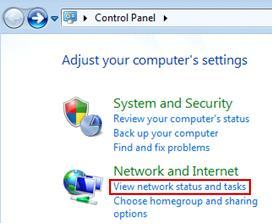
Click Start and Go to Control Panel
Under Network and Internet Click View Network Status and Tasks
Click Change Adapter settings.
Right Click Local Area Connection and Select Properties
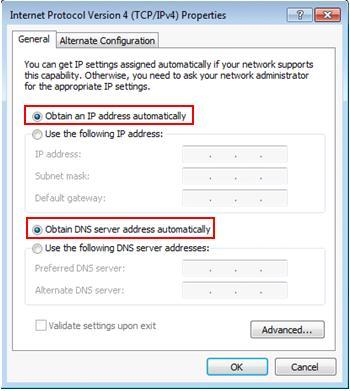
Highlight Internet Protocol version 4 (TCP/IPv4)
Select Obtain an IP address automatically and Obtain dns address automatically.
Click Ok.
Showing posts with label ip address. Show all posts
Monday, November 15, 2010
Assign Static in Local Area Connection
Click Start and Go to Control Panel
Under Network and Internet Click View Network Status and Tasks
Click Change Adapter settings.
Right Click Local Area Connection and Select Properties
Highlight Internet Protocol version 4 (TCP/IPv4)
Select Use the following IP address to assign static ip address and Dns adderss select use the following dns address.
Assign a Static ip address to the Range of the network. For example if the Gateway address of your network is 192.168.1.1, then assign as 192.168.1.10. Subnet mask gets filled in automatically. Assign the gateway address. For dns address use static dns address provided by your Service Provider or use any global dns address.
Enter the Correct Values and Click Ok.
Under Network and Internet Click View Network Status and Tasks
Click Change Adapter settings.
Right Click Local Area Connection and Select Properties
Highlight Internet Protocol version 4 (TCP/IPv4)
Select Use the following IP address to assign static ip address and Dns adderss select use the following dns address.
Assign a Static ip address to the Range of the network. For example if the Gateway address of your network is 192.168.1.1, then assign as 192.168.1.10. Subnet mask gets filled in automatically. Assign the gateway address. For dns address use static dns address provided by your Service Provider or use any global dns address.
Enter the Correct Values and Click Ok.
Browse > Home /
ip address /
windows 7 /
wireless card /
Wireless connection
/ Release static ip in From Network Connection
Release static ip in From Network Connection
0
comments
12:18 AM
Posted by
Admin
Labels: ip address, windows 7, wireless card, Wireless connection
Click Start and Go to Control Panel
Under Network and Internet Click View Network Status and Tasks
Click Change Adapter settings.
Right Click Wireless Network Connection and Select Properties
Highlight Internet Protocol version 4 (TCP/IPv4)
Select Obtain an IP address automatically and Obtain dns address automatically.
Click Ok.
Under Network and Internet Click View Network Status and Tasks
Click Change Adapter settings.
Right Click Wireless Network Connection and Select Properties
Highlight Internet Protocol version 4 (TCP/IPv4)
Select Obtain an IP address automatically and Obtain dns address automatically.
Click Ok.
Browse > Home /
ip address /
windows 7 /
wireless card /
Wireless connection
/ Assign static ip in Wireless Network Connection
Assign static ip in Wireless Network Connection
0
comments
12:11 AM
Posted by
Admin
Labels: ip address, windows 7, wireless card, Wireless connection
Click Start and Go to Control Panel
Under Network and Internet Click View Network Status and Tasks
Click Change Adapter settings.
Right Click Wireless Network Connection and Select Properties
Highlight Internet Protocol version 4 (TCP/IPv4)
Select Use the following IP address to assign static ip address and Dns adderss select use the following dns address.
Assign a Static ip address to the Range of the network. For example if the Gateway address of your network is 192.168.1.1, then assign as 192.168.1.10. Subnet mask gets filled in automatically. Assign the gateway address. For dns address use static dns address provided by your Service Provider or use any global dns address.
Enter the Correct Values and Click Ok.
Under Network and Internet Click View Network Status and Tasks
Click Change Adapter settings.
Right Click Wireless Network Connection and Select Properties
Highlight Internet Protocol version 4 (TCP/IPv4)
Select Use the following IP address to assign static ip address and Dns adderss select use the following dns address.
Assign a Static ip address to the Range of the network. For example if the Gateway address of your network is 192.168.1.1, then assign as 192.168.1.10. Subnet mask gets filled in automatically. Assign the gateway address. For dns address use static dns address provided by your Service Provider or use any global dns address.
Enter the Correct Values and Click Ok.
Sunday, November 7, 2010
Assingn Static IP/DNS address
Go to the Main Menu.
Go to System Settings
Select Network Settings
Under Network settings select configure Network
Under Basic settings select ip settings
Select ip settings to Manual
Select ip address
Enter a ip address to the range of the router and select done
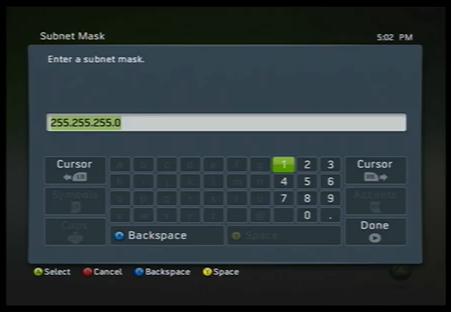
Select Subnet mask
Enter a valid subnet mask and Select Done
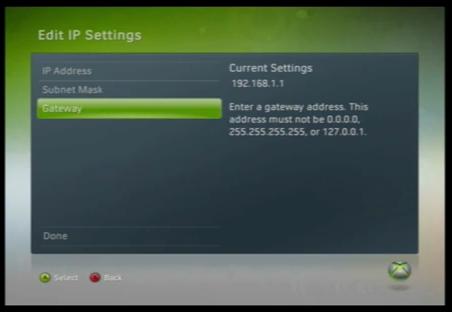
Select Gateway
Enter the default gateway address
Select Done to save the IP settings

Under Basic settings select Dns settings

Under Dns settings select primary dns server
Select dns settings as Manual
Enter a Dns server address and select done. Similarly select secondary dns address and assign a static secondary server address.

Select Done to save the dns settings

Go to System Settings
Select Network Settings
Under Network settings select configure Network
Under Basic settings select ip settings
Select ip settings to Manual
Select ip address
Enter a ip address to the range of the router and select done
Select Subnet mask
Enter a valid subnet mask and Select Done
Select Gateway
Enter the default gateway address
Select Done to save the IP settings
Under Basic settings select Dns settings
Under Dns settings select primary dns server
Select dns settings as Manual
Enter a Dns server address and select done. Similarly select secondary dns address and assign a static secondary server address.
Select Done to save the dns settings
Test X-box Live connection.
Saturday, November 6, 2010
Find IP address in windows XP
Go to Start> and click Run.
Type cmd when the Run box pops up and click OK.
Once you get the DOS prompt type ipconfig. You will see the IP Address that is assigned to your computer.
Type cmd when the Run box pops up and click OK.
Once you get the DOS prompt type ipconfig. You will see the IP Address that is assigned to your computer.
Subscribe to:
Posts (Atom)